How to dictate a prompt with your voice in PromptPal
Speak your prompt instead of typing it, and have the words land in the prompt box ready to edit. Voice dictation is available on the free plan, so all you need is a PromptPal account and a microphone.
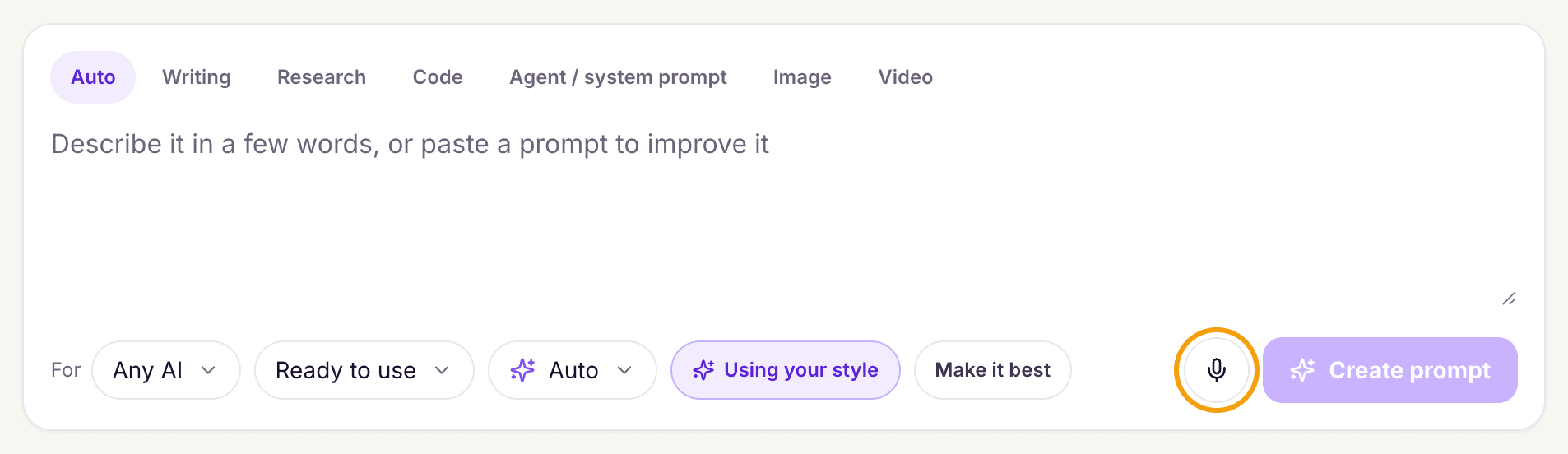
Step 1: Find the mic in the prompt box
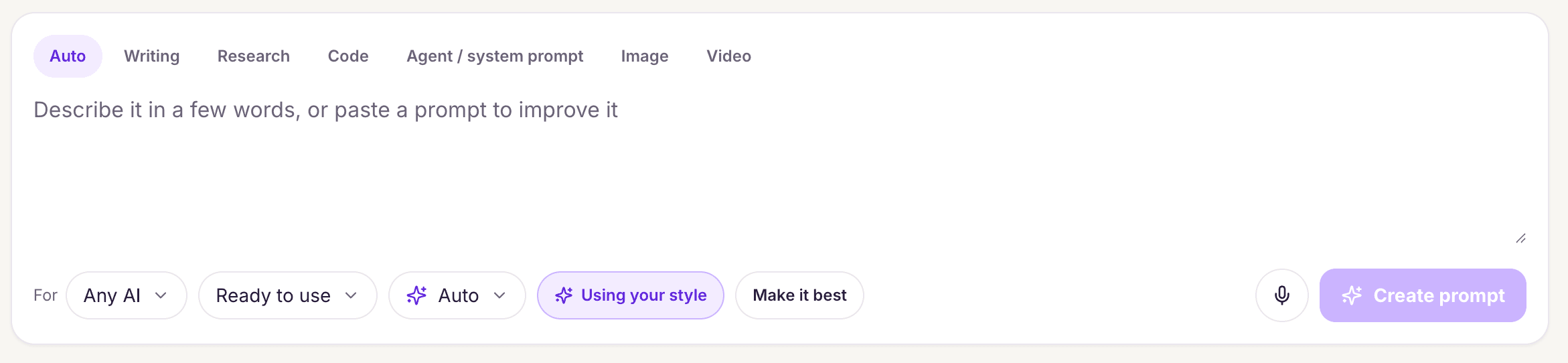
Open the prompt box in PromptPal. You'll see a mic button labelled Start voice recording, with the hint "Tap mic to speak your idea."
If your browser asks for microphone access, allow it. Without that, nothing can be heard, and dictation won't start. The exact wording of that permission request depends on your browser, so we can't describe it here.
Step 2: Tap the mic and start talking
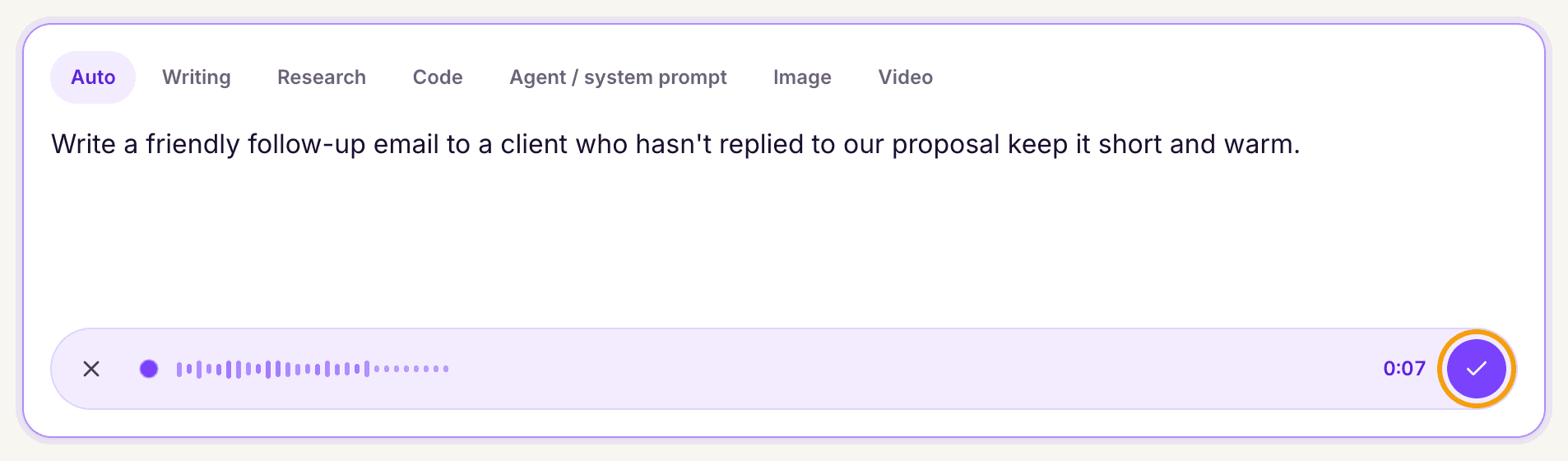
Tap Start voice recording and begin speaking. The box shows "Listening..." along with a live waveform, and your words appear in the prompt box as you go.
The waveform is your quickest check that the mic is picking you up. If it stays flat while you talk, stop and check which microphone your computer is using.
Speak the way you'd brief a colleague: the task, who it's for, the format you want. Something like this works well:
Write a short follow-up email to a client who hasn't replied to my proposal in two weeks. Keep it friendly, under 120 words, and end with a clear question about next steps.
Don't worry about perfect phrasing. You can tidy it afterwards.
Step 3: Tap the mic again to stop
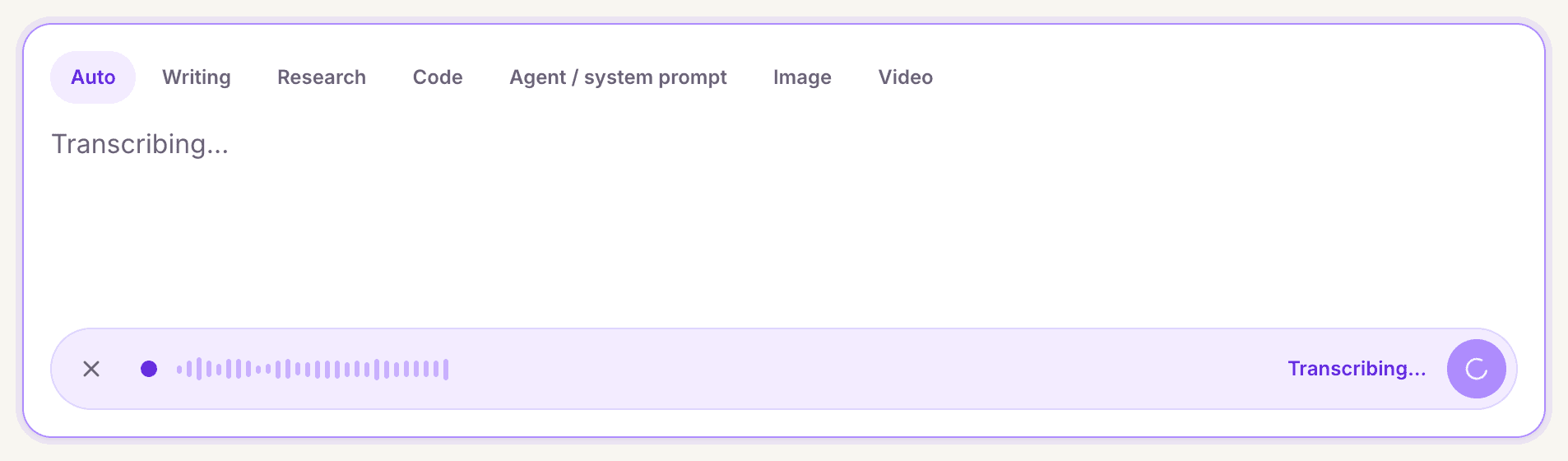
When you've said what you wanted, tap the mic again. PromptPal shows "Transcribing..." and then "Transcription added."
That second message means the final text is in the prompt box. Wait for it before you start editing, so your changes don't collide with the transcription finishing.
Step 4: Know which speech engine is doing the work
PromptPal uses Whisper transcription when it's available. When it isn't, it falls back to your browser's own speech recognition. You don't choose between them, and the steps for you are the same either way.
The practical difference is accuracy. If a name, product term, or bit of jargon comes out wrong, that's likely a transcription quirk rather than something you did. Fix it by hand in the next step.
Step 5: Edit the text and refine it
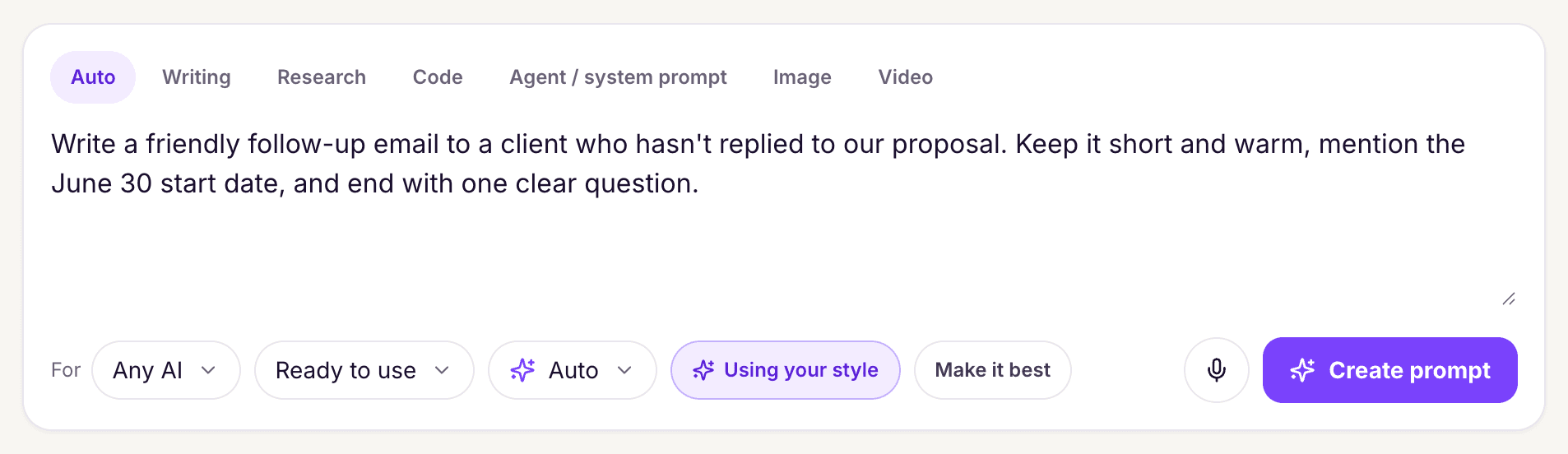
Read what's in the box and correct anything misheard: names, numbers, filler words. Spoken prompts tend to ramble, so cut anything that doesn't change the answer.
Once it reads the way you want, treat it like any typed prompt and refine it. If you haven't tried refining yet, our guide How to Create a Prompt Using PromptPal Refine with AI covers it.
My habit: dictate the messy first draft, then spend a minute adding the constraints I forgot to say out loud, like length, tone, and audience.
Open promptpal.app, tap the mic in the prompt box and dictate your next prompt.