How to Create a Prompt Using PromptPal Refine with AI
Refine with AI is a 3-step wizard inside PromptPal's Library that turns a rough idea into a production-ready prompt. You describe what you want, configure style and audience, and the AI generates a structured prompt with a quality score, actionable improvement tips, and a built-in security scan — all before you save it.
Step 1 — Open the New Prompt wizard
From the sidebar, click Library, then click + New Prompt (or navigate directly to /dashboard/library/newPrompt?start=refine).
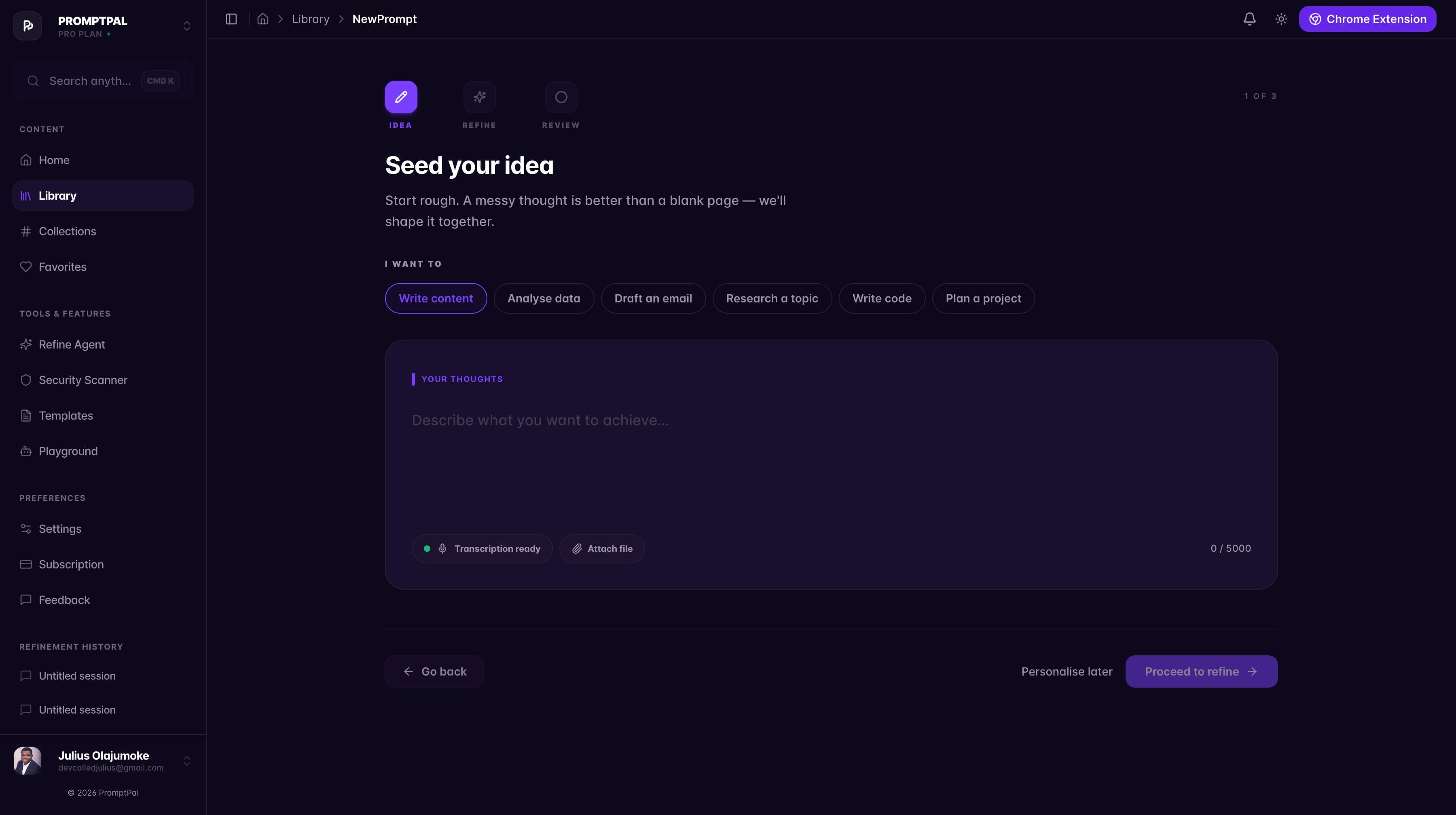
You land on Step 1: Seed your idea (1 of 3). The page reads:
"Start rough. A messy thought is better than a blank page — we'll shape it together."
Choose a goal tag under I WANT TO: Write content, Analyse data, Draft an email, Research a topic, Write code, or Plan a project.
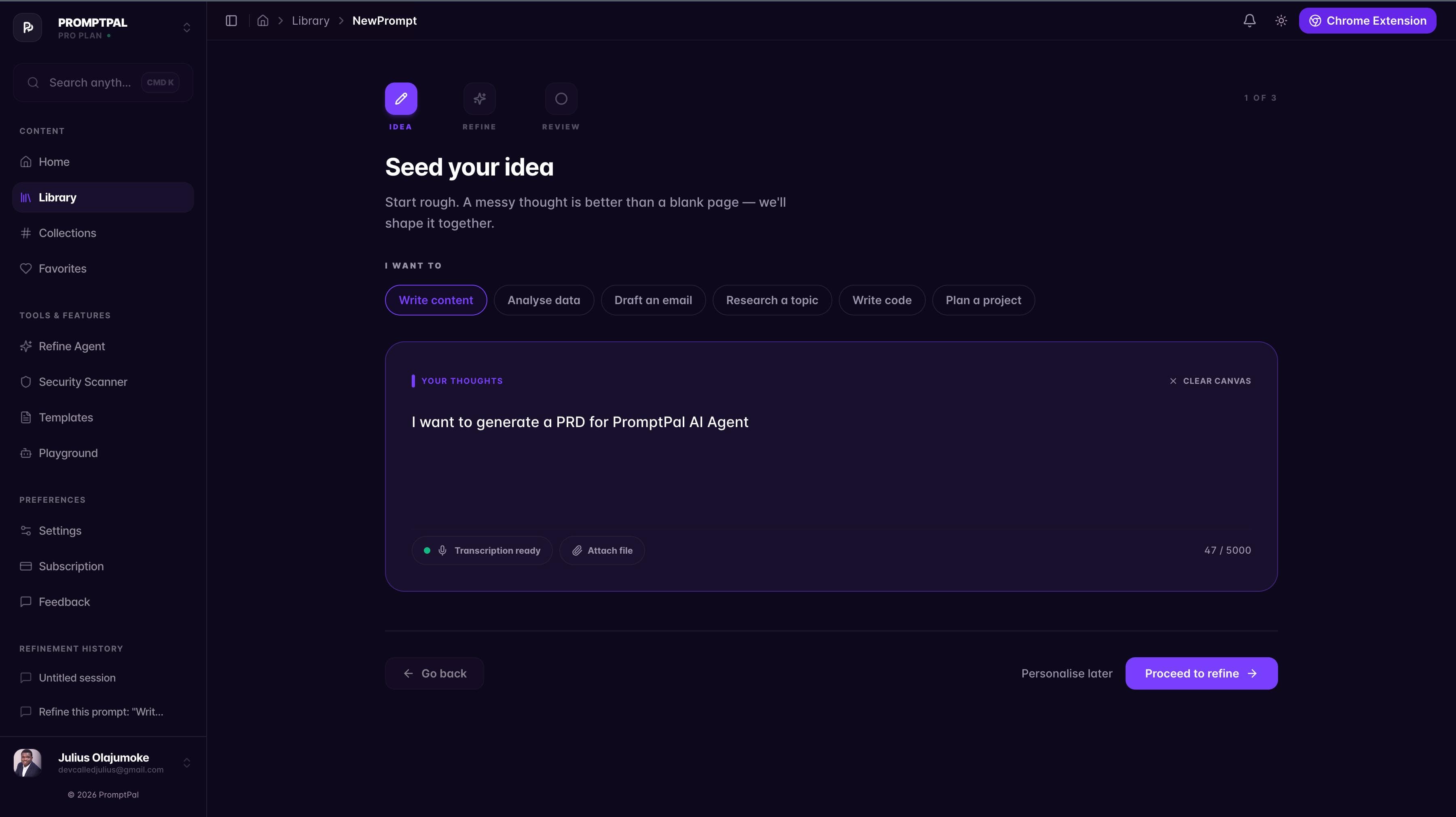
In the YOUR THOUGHTS text area, describe what you want to achieve in plain language — no prompt engineering needed. The field accepts up to 5000 characters. You can also dictate using Transcription ready or Attach file for extra context.
When done, click Proceed to refine →.
Refine with AI
Step 2 - Refine with AI
Step 2 — Configure the AI crafting room
You're now on Step 2: AI crafting room (2 of 3).
This step lets you control exactly how the AI refines your idea:
Refinement Style — Creative, Professional, Technical, etc.
Target Audience — Content creators, Developers, Executives, etc.
Output Format — Blog Post, Email, Code, Bullet list, etc.
AI Provider — Choose from OpenAI, Claude, Gemini, or DeepSeek
Constraints — Toggle any combination: Professional, Multi-platform, Short, No jargon, SEO-friendly, Action-oriented, Include examples, or add a custom constraint
Advanced — Set output language
Your original idea appears at the bottom under YOUR IDEA TO REFINE, with detected parameter tags: Intent, Role, Context, Platforms, Format. Missing tags (shown without a checkmark) will be filled in by the AI.
Once you're happy with the settings, click ✨ Refine with AI →.
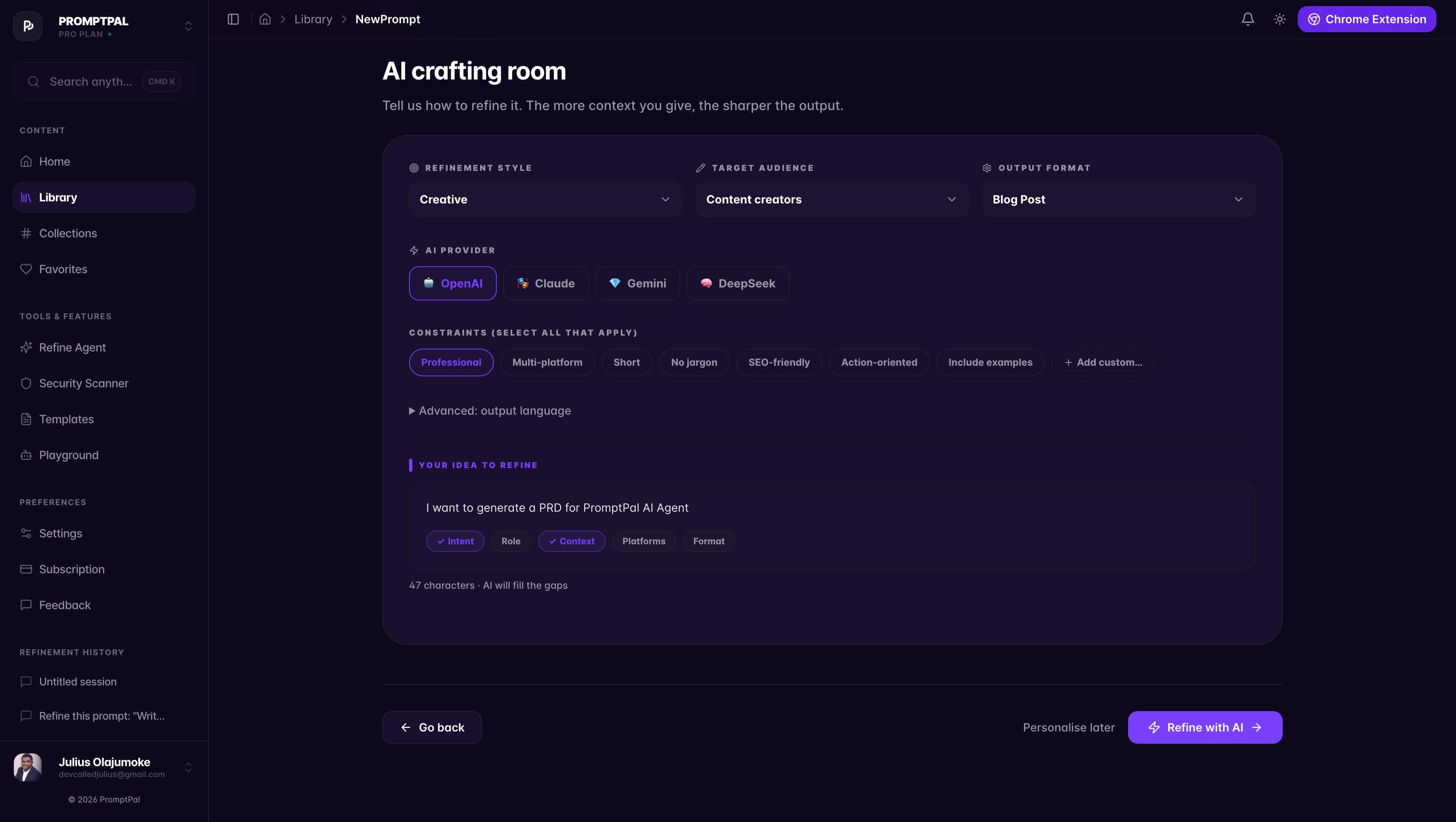
AI crafting room" with all fields visible — scroll to show Style/Audience/Format, AI Provider, Constraints, and the original idea card
Step 3 — Review your refined prompt
The AI generates your Refined masterpiece and moves you to Step 3: Your refined prompt (3 of 3).
The review screen has two panels:
Left — the refined prompt: The AI-generated prompt is displayed in an editable card labelled "REFINED MASTERPIECE · Version 2 · Drafted by AI". Two actions sit above it:
Copy — copies the prompt to clipboard
Re-refine — goes back to adjust settings and regenerate
Right — quality score and signals: A numeric Quality Score (out of 100) with four breakdown metrics shown as progress bars:
Clarity — how unambiguous the prompt is
Specificity — how detailed and targeted
Structure — logical flow and organisation
Reusability — how well it works across different contexts
Each low-scoring dimension shows a specific fix suggestion with a direct link (e.g. "Add more platform-specific detail — fix this →").
Right panel — save & next actions:
Save to library — saves the prompt immediately; unlocks more actions (collections, sharing)
Security scan — runs the prompt through the Security Scanner to check for injection risks and data leaks
Re-refine — iterate with different settings
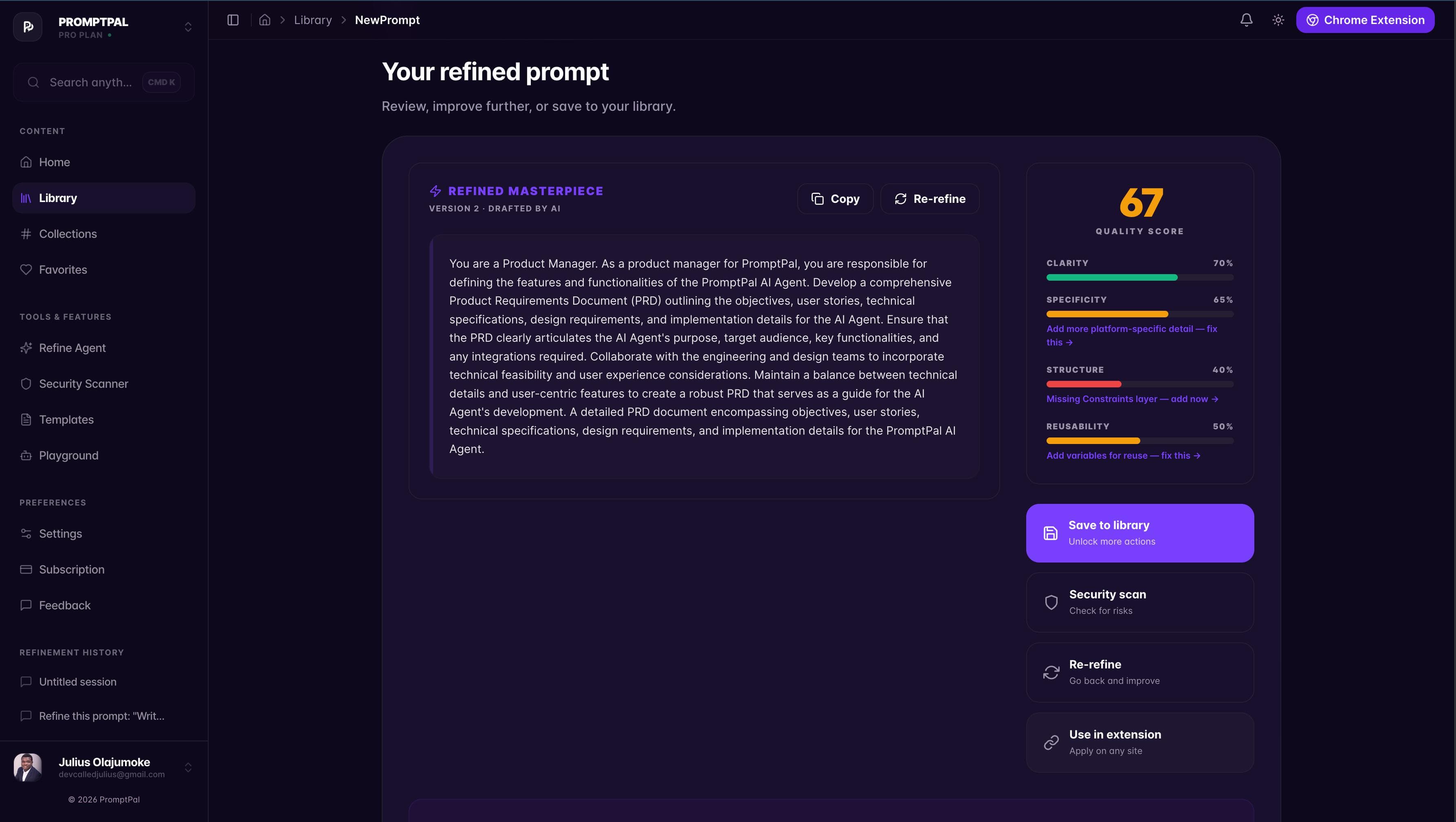
Your refined prompt" with the generated prompt text on the left and Quality Score panel on the right
Try it now — open Library and click New Prompt